Moving to a Private GitHub Repo: Will It Break Your Vercel Deployments?
When you launch a new project or start a personal company, you often begin with a public GitHub repository. But as your project matures, you might decide it is time to lock things down and make your source code private to protect your intellectual property.
Introduction
If you are hosting your site on Vercel's Hobby plan, a common anxiety kicks in: Will switching my GitHub repository from public to private break my live website or stop automatic deployments?
The short answer is no, it won't break your site—but there is a strict security catch you need to know about.
📚 What You'll Learn
- What happens behind the scenes when changing repository visibility
- How to decode GitHub's warning messages when going private
- Why Vercel blocks your commits after making a repo private
- How to fix the VS Code author email deployment block in 1 minute
- Answers to common collaborator and permission FAQs on Vercel Hobby Plan
Here is exactly what happens when you make the switch, how to decode GitHub's warning messages, how to fix the common VS Code commit block, and an FAQ guide to help you troubleshoot.
What Happens Behind the Scenes?
Because you connected Vercel to your GitHub account using the official Vercel GitHub App, Vercel already holds a secure digital token linked to your identity.
When you flip the switch from public to private:
- 🚀 Your live website stays online: The public URL (
yourproject.vercel.app) remains 100% accessible to the world. - 🔄 Your deployments keep working: Every time you run
git push, Vercel still builds your changes automatically. - 📊 Your dashboard remains intact: Your logs, analytics, and deployment history in Vercel will not change.
And you can verify this by checking your vercel overview page.
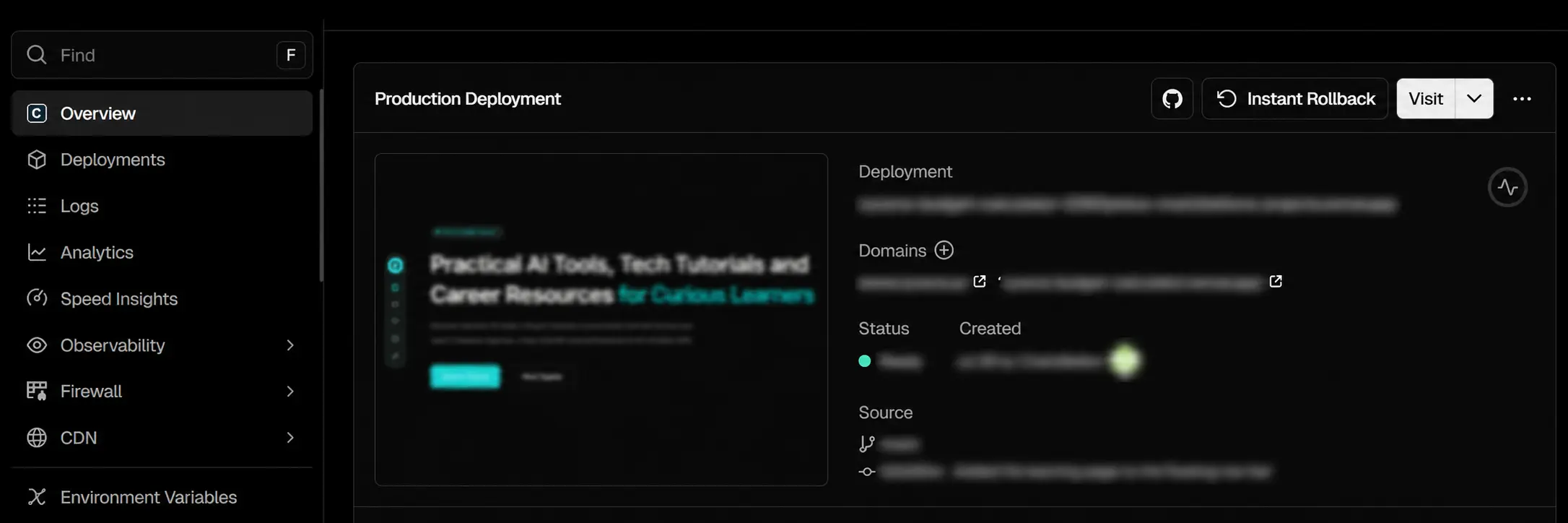
Decoding GitHub's "Scary" Warning Page ⚠️
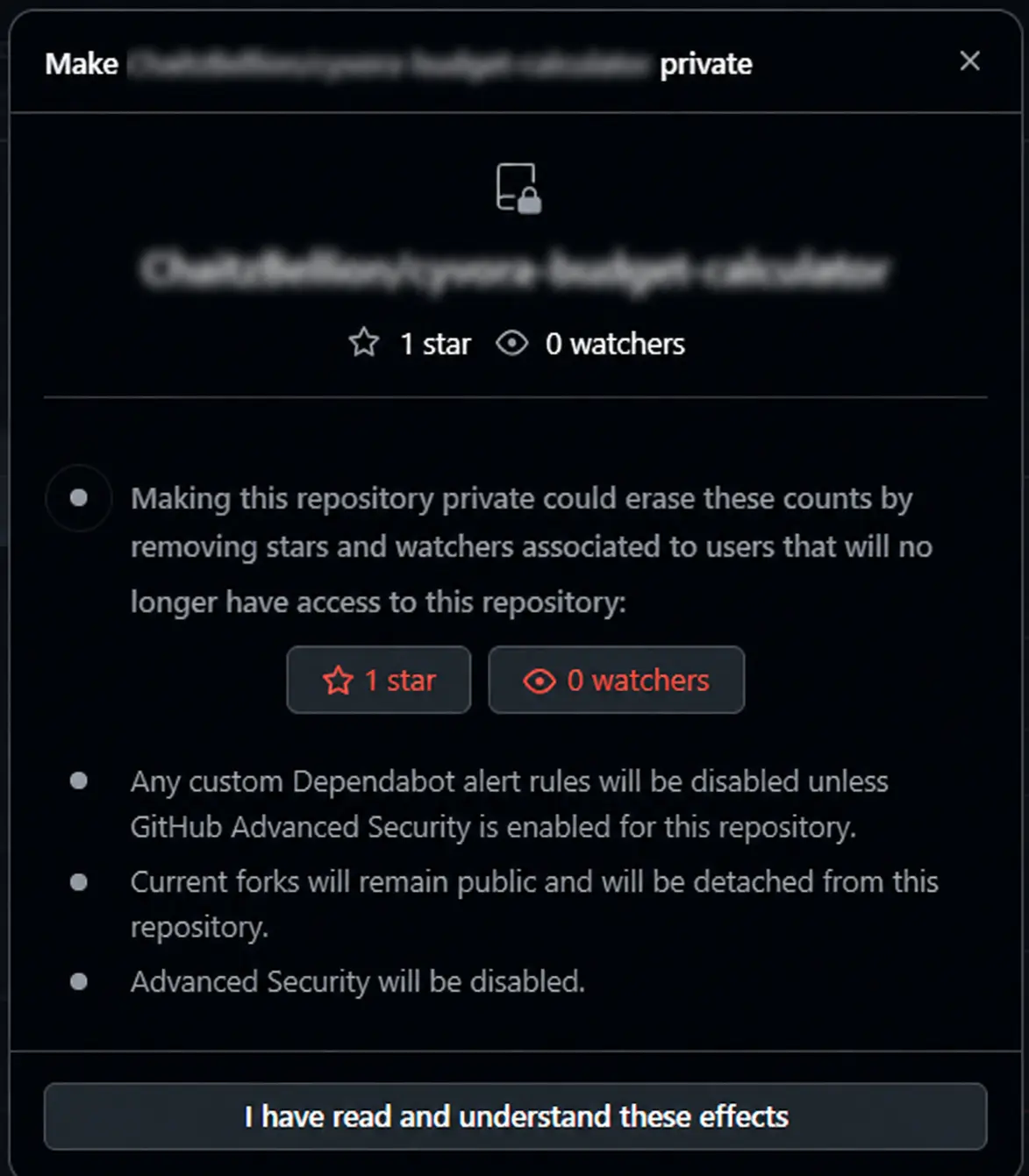
When you click to change your repository visibility, GitHub displays a warning page that looks intimidating. If you are a solo developer or running a small personal company, you can safely ignore these warnings. Here is what they actually mean:
"Erasing counts by removing stars and watchers..."
What it means: If random people starred your repository while it was public, those stars disappear when it goes private.
Vercel Impact: Zero. Vercel doesn't care about social metrics.
"Custom Dependabot alert rules will be disabled..."
What it means: Automated security scanning rules change slightly for private repos, but standard security scanning still works fine.
Vercel Impact: Zero. Your code remains safe.
"Current forks will remain public and will be detached..."
What it means: If someone copied (forked) your public code in the past, their copy stays public, but it gets disconnected from your repo. They will never see your new private updates.
Vercel Impact: Zero. Vercel only looks at your main repository.
"Advanced Security will be disabled."
What it means: This applies to expensive, enterprise-level corporate tools. If you are on a standard free GitHub account, you weren't using this anyway.
The VS Code Trap: Why Your First Private Commit Might Get Blocked
When your repository is public, Vercel doesn't strictly check who authored the code. But the moment a repository becomes private on a Hobby plan, Vercel activates a strict security check to prevent unauthorized multi-user collaboration on the free tier.
Even if you are logged into the Visual Studio Code interface with your GitHub account, Git (the underlying system tracking your changes) uses its own independent text configuration file to sign your commits. If your local Git configuration is using a different email address than your GitHub/Vercel login email, Vercel flags the commit as an "unauthorized outsider" and blocks the deployment.
How to Fix the VS Code Block in 1 Minute
Open the built-in terminal in VS Code (Ctrl + ~) and run these three commands:
1. Tell Git to use your correct GitHub login email:
git config user.email "your-github-login-email@example.com"2. Rewrite the blocked commit with your updated email signature:
git commit --amend --reset-author --no-edit3. Force push the corrected commit back to GitHub:
git push --forceAs soon as you do this, Vercel will verify your identity, the deployment status on your Vercel Dashboard will turn green, and it will say Ready.
Frequently Asked Questions
1. I am logging into my Vercel account using my GitHub account, so how can the email still be an issue?
Logging into Vercel via GitHub authorizes the platform to talk to your account, but Vercel verifies individual deployments by parsing the metadata inside the Git commit package itself. If your local terminal configuration hasn't been updated to match your GitHub login email, the commit metadata looks like it came from an unknown user. Vercel blocks this on the Hobby plan to prevent teams from exploiting the free tier.
2. If I make my repository private, how do I share my project with someone else later?
It depends on what you want them to see:
- To share the live website: You don't need to do anything. Your Vercel production URL remains public and accessible to everyone.
- To share the code: Go to your GitHub Repository Settings > Collaborators and click Add people to invite them via their GitHub username.
3. Is there a catch when adding collaborators to a private repo on the Vercel Hobby Plan?
Yes. The Vercel Hobby tier does not allow team collaboration on private projects. If your invited GitHub collaborator pushes code directly to your private repository, Vercel will block the deployment. To bypass this on the free tier, they must submit a Pull Request, and you must be the one to merge and push it to the main branch. If you need seamless multi-developer deployment automation, you must upgrade to Vercel Pro.
4. What should I do if Vercel still won't trigger deployments after making the repo private?
Head to your personal GitHub Settings > Integrations > Applications, click Configure next to Vercel, and verify that under Repository access, Vercel has explicit permissions to view your newly private repository.